


When a beginner first picks up a DSLR camera, the sheer number of buttons, dials and switches can feel overwhelming. But the DSLR camera controls and functions are your gateway to creative freedom — understanding them means you can stop relying on full auto mode and start controlling your imagery. In this beginner-friendly guide on Geonline, you’ll get a practical, clear, conversational walk-through from a photographer’s experience: I’ve been there, fumbling with buttons, and now I’ll share the insights I wish I’d had earlier.
You’ll learn what each button and dial on a DSLR typically does, how to use them in real-world shooting, common pitfalls, and ways to customize your camera to make it work for you. Whether you’re shooting travel, portraits, or everyday snapshots, by the end of this article you’ll feel confident navigating your DSLR controls and functions.
Beginner Guide to DSLR Camera Buttons
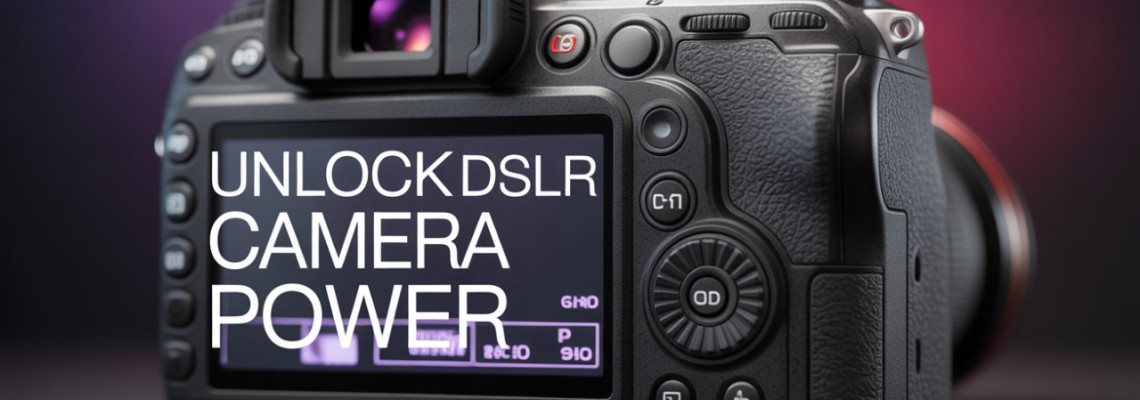
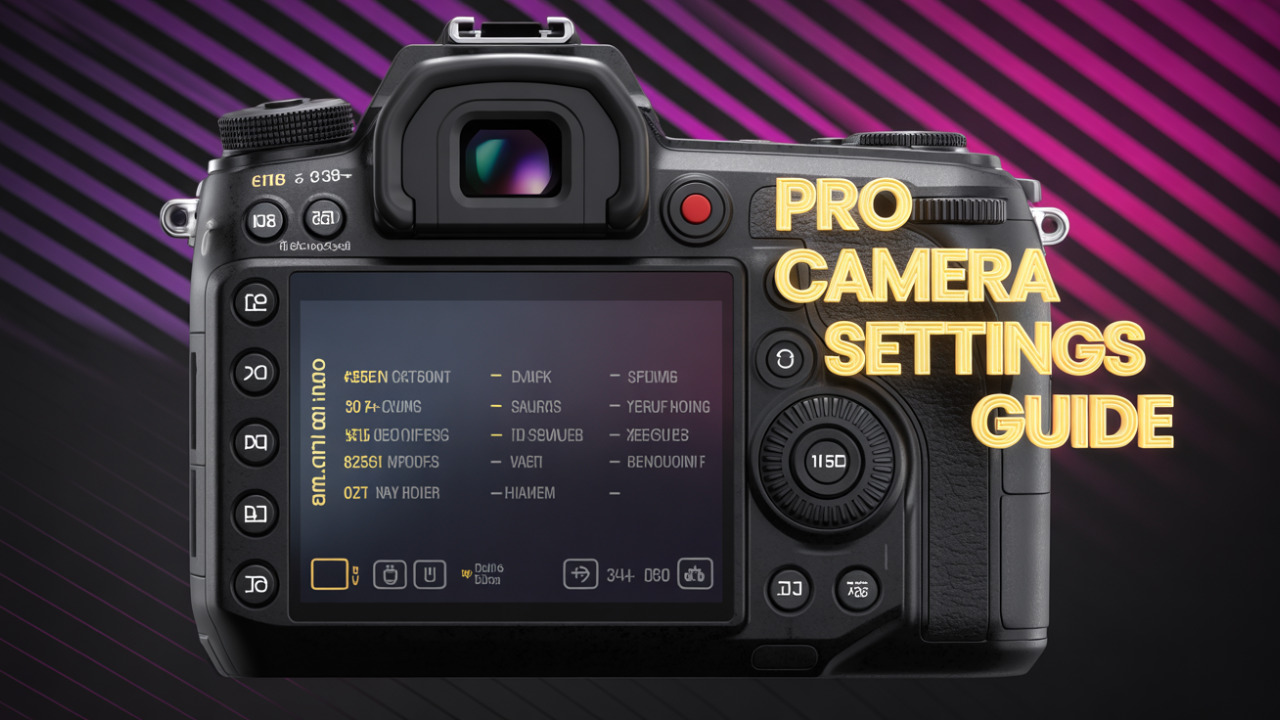
To begin, let’s map out the layout of most DSLR cameras so you know what you’re looking at.
Typically, a DSLR body includes:
A mode dial (top-left or top-right) to select shooting mode
A shutter button (top-right) plus maybe an on/off switch around it
Buttons around the back panel: Menu, Info, Playback, Delete, Live View, AF-ON/Fn, Drive Mode, ISO, Exposure Compensation
A quick menu (Q-menu) or Fn button which gives fast access to favourite settings
Navigation buttons (arrow keys, OK) to move through menus
Real-world example: On the Nikon D3500, the manual lists the “shutter-release button”, the “mode dial”, “R (info) button”, “multi-selector” navigation and “OK button”.
Pain point: Many beginners don’t know which button does what, and so stay in full auto mode out of fear. My experience: I pressed buttons randomly until I learned what each did—and you can too, with guidance.
What Do the Buttons on a DSLR Do?
Here’s a breakdown of the common buttons and what they are used for.
Mode Dial Explained
The mode dial is the primary selector for how much control you want over the camera. It usually includes:
Auto (green icon) — camera handles everything
P (Program) — camera sets shutter and aperture but you can adjust others
A or AV (Aperture Priority) — you set aperture, camera sets shutter speed
S or TV (Shutter Priority) — you set shutter speed, camera sets aperture
M (Manual) — you set both shutter and aperture yourself
Scene modes (Portrait, Sports, Night, etc)
According to Digital Trends, these “P, S, A, M” modes are standard on most DSLRs.
And the mode dial’s design and location is described in a wiki article.
Using the mode dial means you decide how much of the exposure triangle you control.
How to Use the ISO Button on DSLR
The ISO button (or shortcut) lets you adjust the sensor’s sensitivity to light. A higher ISO lets you shoot in lower light but introduces more noise.
For example: If you’re inside a dim room and your shutter is too slow, bumping ISO lets you keep the shutter steady and the image sharp. As one beginner guide explains: “The best ISO is the lowest ISO that allows you to achieve the appropriate shutter speed and aperture.”
Tip: Know your camera’s comfortable “high ISO” limit (e.g., ISO 1600) before noise becomes unacceptable.
Shutter Button Function in DSLR
The shutter button is the most used button on your DSLR. It generally has two stages: half-press and full-press.
Half-press: Focus locks, exposure meter reads.
Full-press: Picture is taken.
In my experience: Get into the habit of pressing halfway first to ensure focus, especially with moving subjects.
What Is the Menu Button Used For
The Menu button opens the main settings menu of the camera. This is where you set up: image quality, white balance, file format (RAW vs JPEG), custom button assignments, autofocus settings, etc.
Often you’ll see both a “Main Menu” and a “Quick Menu” (Q-Menu) for faster access. Beginners sometimes overlook it and keep using default settings.
DSLR Playback and Delete Buttons Explained
Playback button: Lets you review the photos you’ve taken on the LCD.
Delete button (trash icon): Lets you erase unwanted images when in playback mode.
Helpful tip: After a shoot, review the images while still on location and delete any clear bad ones. This saves memory card space and time later.
How to Change Settings Using DSLR Buttons
You’ll often navigate settings using combination of:
Mode dial to select mode
ISO button
Drive mode button
Exposure compensation button
Fn button (for favourite settings)
Quick menu vs Main menu
By learning your camera’s layout you spend less time looking at the screen and more time shooting.
Understanding the Function (Fn) Button on DSLR
The Fn button (or “Function button”) is a customizable shortcut button found on many DSLRs. You can assign it to things like: ISO, white balance, metering mode, or anything you use often.
In the pro world, customizing Fn means you don’t have to dive into deep menus. I personally assigned mine to “AF-area mode” and it saved time when switching from portraits to landscapes.
DSLR Autofocus Button Explained
Many DSLRs have a dedicated AF-ON or AF-Lock button separate from the shutter button. This means you can:
Focus first (via AF-ON)
Recompose the shot
Then press shutter to take photo.This gives more control compared to half-pressing shutter to focus. As one guide notes: “Back focus… enhances your workflow and the way in which you operate your camera.”
If your camera supports it, try switching to AF-ON for creative control.
How to Customize DSLR Buttons
Most modern DSLRs allow you to customise buttons (Fn, AE-Lock, AF-ON etc) in the menu. Customization lets the camera adapt to your style. For example: I mapped the Exposure Compensation button to a back-dial because I adjust it very often when shooting high contrast scenes.
Tips for customizing:
Pick 2-3 buttons you’ll use often
Assign critical functions (ISO, Drive Mode, AF Mode)
Label them mentally and practise until it becomes instinctive
DSLR Exposure Compensation Button Use
The Exposure Compensation (+/-) button lets you tell the camera: “Make this shot brighter” or “darker” while staying in semi-automatic mode (A, S, or P). For example: In snowy scenes the camera may under-expose because it sees so much white—choosing +1EV helps correct that.
In my early days I consistently under-exposed snow, until I realised the exposure compensation button existed!
Quick Menu vs Main Menu in DSLR
Quick Menu (Q-Menu): A fast access menu for frequently used functions (ISO, white balance, drive mode, etc)
Main Menu: The full menu system giving access to everything (customisation, setup, firmware updates etc)
Beginners should use the Quick Menu to save time and only dive into Main Menu when needed.
DSLR Live View Button Explained
The Live View button switches your camera from the optical viewfinder to the rear LCD screen for composing shots. Especially useful for tripod work, video, or awkward angles. Some DSLRs have a switch, others a button. I often switch to Live View when shooting macro work to better frame tiny subjects.
What Is the Info Button on DSLR
The Info button toggles on-screen displays of your shooting settings (shutter speed, aperture, ISO, exposure compensation, battery level). For example, on Nikon it is labelled “R (Info)” and displays a full overlay.
Useful tip: Press Info before a shoot to check settings at a glance instead of digging in menu.
DSLR Drive Mode Button Meaning
The Drive Mode button controls how many frames the camera takes when you press the shutter and in what sequence. Common drive modes:
Single shot
Continuous (burst)
Timer (2-sec, 10-sec)
Remote (wireless shutter)
When shooting fast-moving subjects (sports / wildlife) you want continuous mode; for tripod work a timer helps avoid shake.
Difference Between AF-ON and Shutter Focus
Shutter focus (half-press the shutter to focus): default on most cameras
AF-ON: separate button for focus, shutter just fires the photo
Using AF-ON gives you more consistent focus especially when recomposing or shooting video. Many professionals prefer the “back-focus” method.
In my shoots I switched to AF-ON and immediately noticed fewer mis-focus shots.
DSLR Navigation and OK Buttons Use
On the back of the camera you’ll find navigation (arrow keys or joystick) and an OK or Set button to confirm selections. These let you:
Move between menu items
Change autofocus point
Select images in playback mode
Regular use: After pressing Menu, use navigation to highlight “Custom Function” → press OK → choose setting → OK to confirm.
DSLR Button Layout for Beginners
For a beginner friendly layout:
Keep the mode dial on A (Aperture Priority) or P (Program) until comfortable
Set ISO to Auto ISO with a ceiling (e.g., 1600) so you don’t worry about noise
Use the Exposure Compensation (+/-) button to control brightness
Leave custom buttons default until you shoot more
Use Live View only when needed—stick with viewfinder for most hand-held shooting
With repeated use, you’ll memorise where each button is, reducing camera shake and mental load.
Practical Insights & Real-World Examples
To make this more concrete, here are two mini case-studies from a photographer’s first-hand view.
Example 1: Indoor Family Event
I set my DSLR to Aperture Priority (A) on the mode dial. I used ISO Auto (ceiling 1600), set the aperture to f/2.8 to blur the background, and used exposure compensation of +0.7 because the room was dim. I pressed the shutter halfway to focus, then fully to capture. The Fn button was left untouched. The Drive Mode was single shot since I wanted meaningful moments, not bursts. Using the Info button I quickly confirmed settings before each shot.
Example 2: Outdoor Landscape at Sunset
For slow-moving scenario, I switched to Manual (M) mode. I looked at the shutter speed on display, dialled it to 1/60 sec, set aperture to f/11, and ISO to 100. I used Live View to check composition and the grid lines. Exposure compensation was zero since I was in manual. I switched the Drive Mode to 2-sec timer to avoid shake. After shooting, I reviewed images in playback mode, deleted some under-exposed misses.
In both cases, knowing what each button does meant the camera became an extension of my vision, not a mystery box.
Table of Buttons and Functions
Tips for Voice Search & Quick Answers
Since many users now talk to their devices, here are some voice-search friendly phrases your article should cover:
“What do the buttons on a DSLR do?”
“Which mode dial on DSLR should I use as a beginner?”
“How do I use the ISO button on my DSLR camera?”
“What is the Fn button on a DSLR?”
“How can I customise buttons on my DSLR camera?”
When you practise answering these in simple language, you’re ready for featured snippet positions.
People Also Ask (FAQ)
Here are 6 common questions users ask, with brief snippet-friendly answers:
Q1: What does the mode dial on a DSLR camera do?
A1: The mode dial lets you switch between shooting modes (Auto, Program, Aperture Priority, Shutter Priority, Manual) so you choose the level of control you want.
Q2: How do I use the ISO button on my DSLR?
A2: Press the ISO button to adjust the sensor’s sensitivity to light—higher ISO for low light (but more noise), lower ISO for bright scenes (cleaner image).
Q3: What is the Fn button on a DSLR camera used for?
A3: The Fn (Function) button is a custom shortcut that you can assign to a setting you adjust often (like ISO or AF-area mode) so you access it quickly.
Q4: What is the difference between AF-ON and shutter focus on a DSLR?
A4: With shutter focus you half-press the shutter to focus. With AF-ON you press a separate button to focus, then use the shutter purely to take the photo—more flexible for recomposing.
Q5: How do I customise buttons on my DSLR?
A5: Go into the camera’s main menu → Custom Functions → Button Assignment. Select a button (e.g., Fn or AE-Lock) and assign a frequently-used function.
Q6: What is the exposure compensation button on a DSLR and when should I use it?
A6: The exposure compensation button allows you to tell the camera to make the image brighter or darker while remaining in auto or semi-auto mode. Use it in tricky lighting (snow, backlit scenes) to correct for camera bias.
Final Thoughts
Understanding DSLR camera controls and functions transforms your camera from an automatic box to a creative tool. From the mode dial, shutter button and ISO control to custom-function buttons, drive mode, live view and navigation menus—you now have a clear roadmap. My own journey—from hesitant beginner hitting buttons blindly to confident shooter—shows what’s possible with practice.
Leave a Comment